AppsUpdated
Connect apps and integrations
Connect and manage supported livestream, video, social, and commerce integrations from Space settings.
appsintegrationslivestreaming
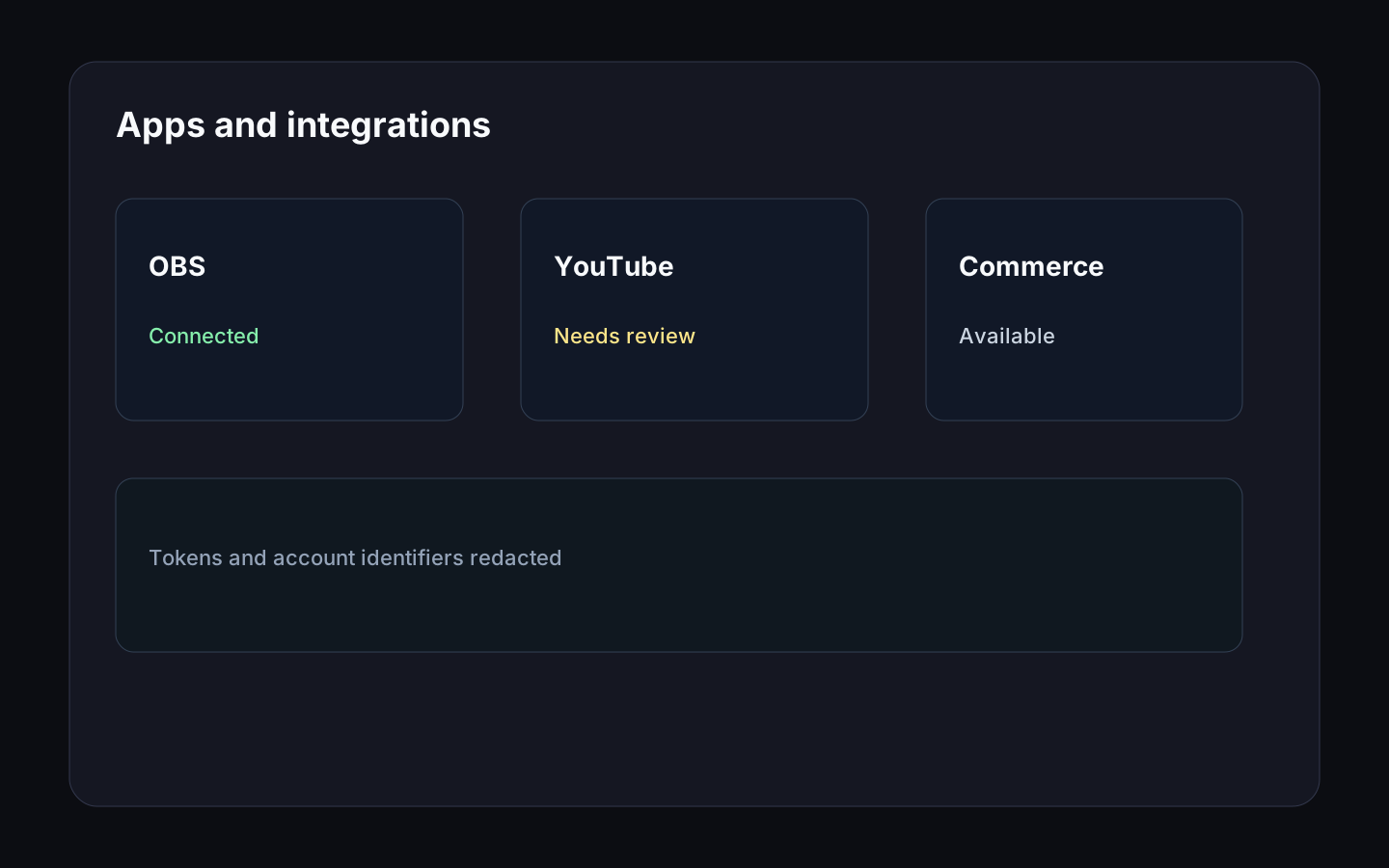
Connected apps extend what your Space can do, especially for livestreaming and content workflows.
Before you start
- Sign in as a Space owner or admin.
- Confirm the external account belongs to the Space or business.
- Check whether the integration requires browser pop-ups or provider permissions.
Connect an app
- Open Settings > Apps.
- Choose the integration category: livestream and video, or audio and radio.
- Select the app you want to connect: YouTube, Facebook Live, Twitch, TikTok Live, or Radio.co.
- Follow the provider sign-in and permission steps.
- Return to Space and confirm the connection status.
OBS is not connected from the Apps page. To stream with OBS, open your livestream in Settings > Content > Livestreams and copy the ingest server and stream key from the stream settings into OBS.
Manage integrations
- Open Settings > Apps.
- Review connection status.
- Disconnect unused or incorrect accounts.
- Reconnect if tokens expire or provider permissions change.
Expected result
The integration should show as connected and become available in the related Space workflow.
Troubleshooting
- If provider sign-in fails, check pop-up blockers and provider account permissions.
- If a connection is stale, disconnect and reconnect.
- If an app is missing, your Space plan or role may not include that integration.
Was this helpful?